
FuturePBX: Difference between revisions
Rename product Tucloud PBX -> FuturePBX (public brand launch 2026-08-03); API surface unchanged |
Renew FuturePBX product page (brand launch): rebuilt from the published article + real product screenshots |
||
| (One intermediate revision by the same user not shown) | |||
| Line 1: | Line 1: | ||
[[File:FuturePBX-bird. | [[File:FuturePBX-bird.png|right|130px|link=|FuturePBX]] | ||
'''FuturePBX''' is our new cloud PBX. Not a rename and not a refresh of the old control panel: a new service, built around one idea that changes everything — '''you manage your phone system by talking to it'''. | |||
We believe it is the most advanced virtual PBX you can buy today, and you don't have to take our word for it: '''our code is published'''. We write the engine that runs the calls, we maintain it ourselves, and anyone can read it. | |||
[[File:fpbx-ai-assistant.png|thumb|center|900px|The FuturePBX AI Assistant: ask in plain language, it does the work.]] | |||
== Talk to your phone system instead of configuring it == | |||
For thirty years, administering a PBX has meant the same thing: learn a panel, remember which tab holds what, fill in forms. FuturePBX ships with an '''AI Assistant''' that breaks with all of it. You type what you need, in Spanish or English, in ordinary words: | |||
* ''"Create a support queue and add the three admin agents."'' | |||
* ''"Show me the extensions that aren't registered."'' | |||
* ''"Put the reception agent on pause."'' | |||
And it does it. That is what separates it from a chatbot: the assistant '''doesn't just answer, it acts'''. It is wired straight into the platform's real functions and uses them as tools. When you ask for information it answers immediately; when your request changes something — create, edit or delete — it '''always asks for confirmation''' before touching anything. Nothing changes on your PBX that you did not approve. | |||
It also replies with '''interactive cards''': ask about an extension and you get that extension's card with an ''Edit'' button — click it and you edit right there, inside the conversation. The assistant is available as a full page and as a floating helper on every screen, resizable and maximisable. | |||
== A new portal — fast, and out of your way == | |||
The portal has been rebuilt from scratch as a modern web application: navigation is instant, with no page reloads. A single data grid and a single form component are reused across the whole product, so everything behaves the same way wherever you are. '''Dark mode''' is included on every screen. | |||
== | <gallery mode="packed" heights="240px"> | ||
File:fpbx-dashboard.png|Dashboard: the state of your PBX at a glance | |||
File:fpbx-dark-dashboard.png|The same dashboard in dark mode | |||
</gallery> | |||
== Your PBX in your pocket == | |||
FuturePBX is '''fully mobile-responsive'''. Not a cut-down version, not a separate app: the same complete portal, with a slide-in menu and forms and tables that reflow for a small screen. You can add an extension, check the call log or pause an agent from your phone, standing up, anywhere. | |||
<gallery mode="packed" heights="300px"> | |||
File:fpbx-mobile-dashboard.png|Dashboard on a phone | |||
File:fpbx-mobile-menu.png|Slide-in menu | |||
File:fpbx-mobile-ai.png|The AI Assistant on mobile | |||
</gallery> | |||
== | == Extensions and QR provisioning == | ||
Create, edit and delete extensions with everything you'd expect — plus '''QR-code provisioning''', so setting up a softphone no longer means reading credentials down the phone. Scan it, done. | |||
[[File:fpbx-extensions.png|thumb|center|900px|Extension management.]] | |||
[[File: | |||
== A call log that tells you the direction == | |||
The call detail record (CDR) now shows the '''direction''' of every call — inbound, outbound or internal — as a column of its own. A small thing you appreciate every single day when you're hunting for one specific call. | |||
[[File:fpbx-cdr.png|thumb|center|900px|Call log with the Direction column.]] | |||
== Routing, IVR, schedules and announcements == | |||
Everything you'd expect from a professional phone system, plus one genuinely unusual tool: a '''call simulator''' that draws the path a call would take through your rules, step by step. You see the flow before a real customer has to live through it. | |||
== | <gallery mode="packed" heights="240px"> | ||
File:fpbx-routes.png|Inbound routes and IVR | |||
File:fpbx-simulator.png|The simulator: the call's journey, step by step | |||
</gallery> | |||
Alongside those: ring groups, calendars and time-based routing, announcements and voicemail, music on hold, blacklists, contact directories, and outbound rules with caller-ID selection. | |||
<gallery mode="packed" heights="220px"> | |||
File:fpbx-schedules.png|Schedules and calendars | |||
File:fpbx-locutions.png|Announcements and voicemail | |||
File:fpbx-music.png|Music on hold | |||
</gallery> | |||
== | == Queues and agents: rolling out == | ||
FuturePBX brings '''call queues with automatic call distribution (ACD)''': inbound calls are shared out across a team of agents using the strategy you pick — ring everyone, longest idle, fewest calls, round robin and more. Agents log in, pause and check their status with short codes from their own handset; callers hear hold music and wait announcements; and if nobody answers in time, the call is forwarded on. The system only rings phones that are actually registered and free, and configuration changes apply to live calls without restarting anything. | |||
{{Note|Being straight with you: managing queues and agents from the portal already works, but '''running queues over real live calls is in its final rollout phase'''. We're telling you now because it is part of what's coming, not because you can use it today. We'll announce the date once the rollout is complete and verified.}} | |||
<gallery mode="packed" heights="240px"> | |||
File:fpbx-queues.png|Call queues with automatic distribution | |||
File:fpbx-agents.png|Agent management | |||
File:fpbx-dark-queues.png|Queues in dark mode | |||
</gallery> | |||
== Underneath: an API that does everything == | |||
The portal is not the product; it is a client of the product. Underneath sits our own '''REST API''' with close to 140 functions across some 28 areas, covering '''100% of PBX management'''. Anything you can do with a mouse you can do over the API — including the AI Assistant itself, which is simply another client of that same API. | |||
If you want to wire FuturePBX into your CRM, your ERP or your own tooling, the door is open and documented. The platform is '''multi-tenant''' from day one: every PBX is isolated from every other, and every request is key-authenticated and scoped to the role that makes it. Full reference: [[TuCloudAPI]]. | |||
== And you can drive it from outside: automation platforms and AI agents == | |||
You don't have to be the one operating it. The API is standard HTTPS with JSON responses and key authentication, so '''any automation platform can drive it with a plain HTTP module''' — Make.com, n8n, Zapier, Power Automate, or whatever you already use. Nothing to install, no connector to write. | |||
What that gets you, in practice: | |||
* A deal closes in your CRM and the PBX creates the new rep's extension by itself. | |||
* Someone joins in your HR system and their phone is provisioned before day one. | |||
* At a given hour — or when your calendar says it's a public holiday — the PBX switches the routing to night mode. | |||
* Your helpdesk flags a ticket as urgent and reorganises the queue that answers it. | |||
And the next step, where this gets genuinely interesting: the PBX is '''built to be operated by an AI'''. The API describes itself — close to 140 functions with their parameters, types and real examples, queryable live — which is exactly what a language model needs to discover them and use them as tools. Your own AI agent can run your phone system: query it, decide, and act. This isn't theory: our own AI Assistant works precisely that way, as another client of that same public API. | |||
Every API key is scoped to its own PBX — one customer's automation cannot see or touch another's — and keys can be issued read-only when all you need is to look. | |||
== Simultaneous translation: everyone speaks their own language == | |||
FuturePBX integrates '''simultaneous, automatic call translation''': each person speaks their own language and hears the other in theirs, while the conversation is happening. Nothing to install, nothing to press, no waiting your turn. | |||
The difference is in how we do it: '''we work directly from voice to voice'''. The conversation is never turned into text — it is not transcribed, that text is not translated, and nothing is read back aloud. That detour through text is exactly what makes conventional solutions sound slow and robotic. Because we skip the text, the translated voice arrives while the conversation is still alive, and it sounds like a conversation, not a dictation. | |||
The system also '''detects the language by itself''' — nobody configures anything before calling, and if both people already speak the same language, the translation steps aside. It can be used directly as a service and is fully integrated into FuturePBX, so switching it on for an extension, a route or a queue is just another option in your phone system. | |||
== The engine: our own software, in the open == | |||
Almost every cloud PBX on the market is the same old PBX with a different logo on top. Ours isn't. We develop and maintain our own telephony platform, '''GabPBX''' — an open-source fork of Asterisk — and our own SIP engine, '''chan_sofia'''. All of it published as free/open-source software under the GPL. | |||
In | chan_sofia is the component that handles every call, every registration and every message, built on the proven sofia-sip stack as a drop-in replacement for the legacy telephony driver older systems still run. In practice: your existing SIP phones and providers keep working, and you gain '''calling straight from a web browser (WebRTC)''' with nothing to install, transport encryption end to end (TLS/WSS and SRTP/DTLS), video, presence and busy-lamp (BLF) keys, and several devices registered to one account — desk phone, softphone and browser, all at once. | ||
Published code is the difference between being able to check what the system you pay for actually does, and having to trust a brochure. You can audit it, your team can study it, and you are not betting on one company continuing to exist. | |||
== Open documentation == | |||
The whole platform is documented, function by function, on this wiki — parameters, call examples and real responses, in Spanish and English. No sign-up, nothing asked in return. Start with '''[[TuCloudAPI]]''' (the REST API reference) and its self-discovery endpoint '''[[TuCloudAPI help]]'''. | |||
<gallery mode="packed" heights="240px"> | |||
File:fpbx-wiki-index.png|The wiki: every function documented, with parameters and examples | |||
File:fpbx-wiki-aichat.png|Public API documentation | |||
</gallery> | |||
== | == Availability == | ||
FuturePBX is on the home straight. We are finishing the production rollout and it is '''expected to go on sale in September'''. We have spent years rewriting this platform layer by layer — FuturePBX is the piece that was missing on top: the one that finally puts all of that work within reach of anyone who can describe what they need. | |||
[[Category:FuturePBX]] | [[Category:FuturePBX]] | ||
Latest revision as of 14:04, 3 August 2026

FuturePBX is our new cloud PBX. Not a rename and not a refresh of the old control panel: a new service, built around one idea that changes everything — you manage your phone system by talking to it.
We believe it is the most advanced virtual PBX you can buy today, and you don't have to take our word for it: our code is published. We write the engine that runs the calls, we maintain it ourselves, and anyone can read it.

Talk to your phone system instead of configuring it
For thirty years, administering a PBX has meant the same thing: learn a panel, remember which tab holds what, fill in forms. FuturePBX ships with an AI Assistant that breaks with all of it. You type what you need, in Spanish or English, in ordinary words:
- "Create a support queue and add the three admin agents."
- "Show me the extensions that aren't registered."
- "Put the reception agent on pause."
And it does it. That is what separates it from a chatbot: the assistant doesn't just answer, it acts. It is wired straight into the platform's real functions and uses them as tools. When you ask for information it answers immediately; when your request changes something — create, edit or delete — it always asks for confirmation before touching anything. Nothing changes on your PBX that you did not approve.
It also replies with interactive cards: ask about an extension and you get that extension's card with an Edit button — click it and you edit right there, inside the conversation. The assistant is available as a full page and as a floating helper on every screen, resizable and maximisable.
A new portal — fast, and out of your way
The portal has been rebuilt from scratch as a modern web application: navigation is instant, with no page reloads. A single data grid and a single form component are reused across the whole product, so everything behaves the same way wherever you are. Dark mode is included on every screen.
-
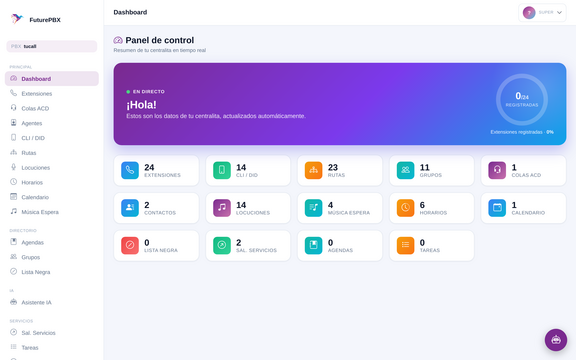 Dashboard: the state of your PBX at a glance
 -
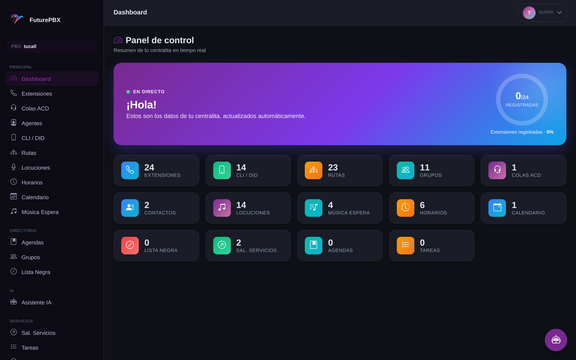 The same dashboard in dark mode


Your PBX in your pocket
FuturePBX is fully mobile-responsive. Not a cut-down version, not a separate app: the same complete portal, with a slide-in menu and forms and tables that reflow for a small screen. You can add an extension, check the call log or pause an agent from your phone, standing up, anywhere.
-
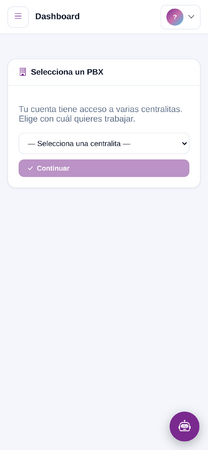 Dashboard on a phone
 -
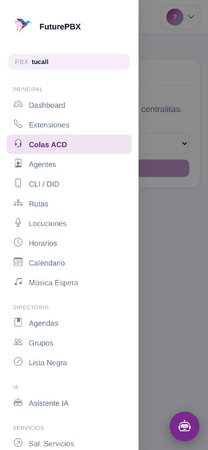 Slide-in menu
 -
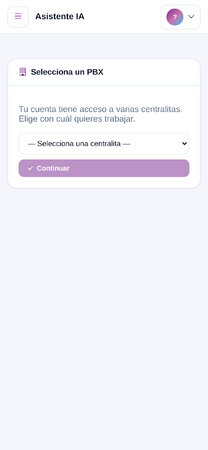 The AI Assistant on mobile


Extensions and QR provisioning
Create, edit and delete extensions with everything you'd expect — plus QR-code provisioning, so setting up a softphone no longer means reading credentials down the phone. Scan it, done.

A call log that tells you the direction
The call detail record (CDR) now shows the direction of every call — inbound, outbound or internal — as a column of its own. A small thing you appreciate every single day when you're hunting for one specific call.

Routing, IVR, schedules and announcements
Everything you'd expect from a professional phone system, plus one genuinely unusual tool: a call simulator that draws the path a call would take through your rules, step by step. You see the flow before a real customer has to live through it.
-
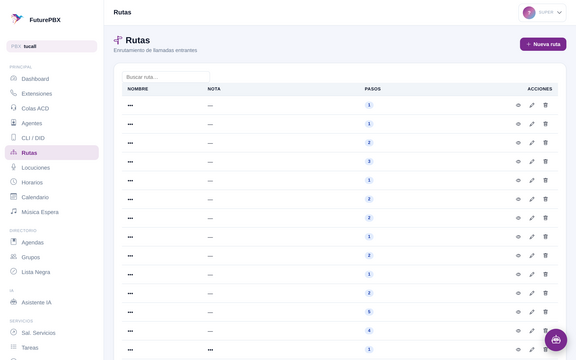 Inbound routes and IVR
 -
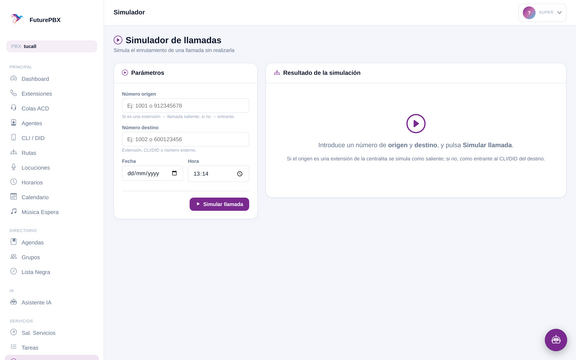 The simulator: the call's journey, step by step


Alongside those: ring groups, calendars and time-based routing, announcements and voicemail, music on hold, blacklists, contact directories, and outbound rules with caller-ID selection.
-
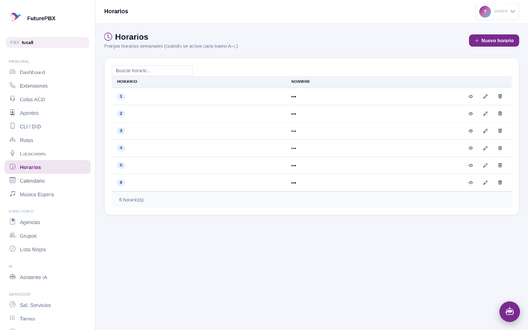 Schedules and calendars
 -
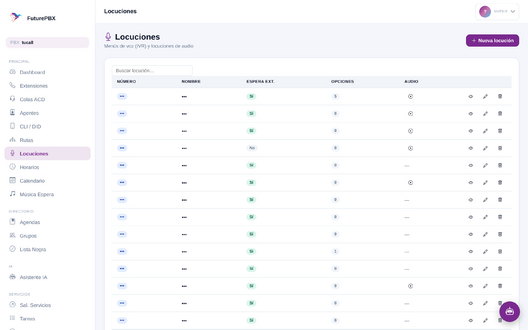 Announcements and voicemail
 -
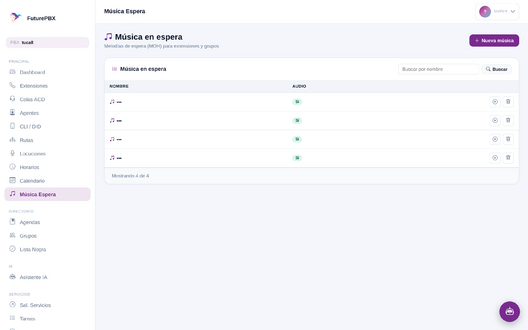 Music on hold


Queues and agents: rolling out
FuturePBX brings call queues with automatic call distribution (ACD): inbound calls are shared out across a team of agents using the strategy you pick — ring everyone, longest idle, fewest calls, round robin and more. Agents log in, pause and check their status with short codes from their own handset; callers hear hold music and wait announcements; and if nobody answers in time, the call is forwarded on. The system only rings phones that are actually registered and free, and configuration changes apply to live calls without restarting anything.
-
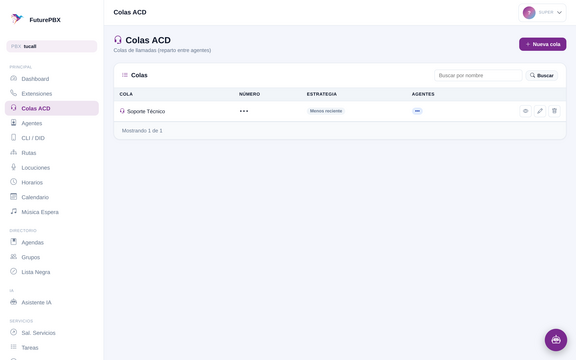 Call queues with automatic distribution
 -
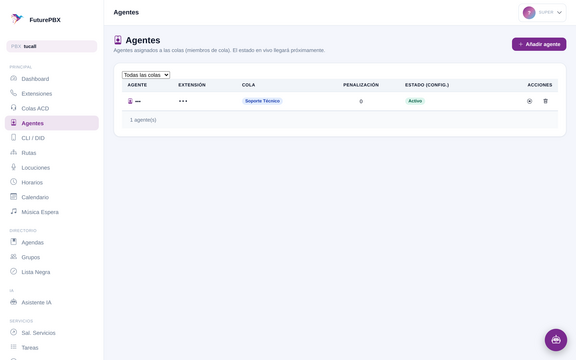 Agent management
 -
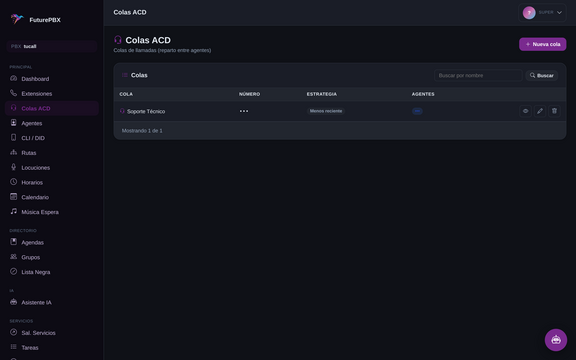 Queues in dark mode


Underneath: an API that does everything
The portal is not the product; it is a client of the product. Underneath sits our own REST API with close to 140 functions across some 28 areas, covering 100% of PBX management. Anything you can do with a mouse you can do over the API — including the AI Assistant itself, which is simply another client of that same API.
If you want to wire FuturePBX into your CRM, your ERP or your own tooling, the door is open and documented. The platform is multi-tenant from day one: every PBX is isolated from every other, and every request is key-authenticated and scoped to the role that makes it. Full reference: TuCloudAPI.
And you can drive it from outside: automation platforms and AI agents
You don't have to be the one operating it. The API is standard HTTPS with JSON responses and key authentication, so any automation platform can drive it with a plain HTTP module — Make.com, n8n, Zapier, Power Automate, or whatever you already use. Nothing to install, no connector to write.
What that gets you, in practice:
- A deal closes in your CRM and the PBX creates the new rep's extension by itself.
- Someone joins in your HR system and their phone is provisioned before day one.
- At a given hour — or when your calendar says it's a public holiday — the PBX switches the routing to night mode.
- Your helpdesk flags a ticket as urgent and reorganises the queue that answers it.
And the next step, where this gets genuinely interesting: the PBX is built to be operated by an AI. The API describes itself — close to 140 functions with their parameters, types and real examples, queryable live — which is exactly what a language model needs to discover them and use them as tools. Your own AI agent can run your phone system: query it, decide, and act. This isn't theory: our own AI Assistant works precisely that way, as another client of that same public API.
Every API key is scoped to its own PBX — one customer's automation cannot see or touch another's — and keys can be issued read-only when all you need is to look.
Simultaneous translation: everyone speaks their own language
FuturePBX integrates simultaneous, automatic call translation: each person speaks their own language and hears the other in theirs, while the conversation is happening. Nothing to install, nothing to press, no waiting your turn.
The difference is in how we do it: we work directly from voice to voice. The conversation is never turned into text — it is not transcribed, that text is not translated, and nothing is read back aloud. That detour through text is exactly what makes conventional solutions sound slow and robotic. Because we skip the text, the translated voice arrives while the conversation is still alive, and it sounds like a conversation, not a dictation.
The system also detects the language by itself — nobody configures anything before calling, and if both people already speak the same language, the translation steps aside. It can be used directly as a service and is fully integrated into FuturePBX, so switching it on for an extension, a route or a queue is just another option in your phone system.
The engine: our own software, in the open
Almost every cloud PBX on the market is the same old PBX with a different logo on top. Ours isn't. We develop and maintain our own telephony platform, GabPBX — an open-source fork of Asterisk — and our own SIP engine, chan_sofia. All of it published as free/open-source software under the GPL.
chan_sofia is the component that handles every call, every registration and every message, built on the proven sofia-sip stack as a drop-in replacement for the legacy telephony driver older systems still run. In practice: your existing SIP phones and providers keep working, and you gain calling straight from a web browser (WebRTC) with nothing to install, transport encryption end to end (TLS/WSS and SRTP/DTLS), video, presence and busy-lamp (BLF) keys, and several devices registered to one account — desk phone, softphone and browser, all at once.
Published code is the difference between being able to check what the system you pay for actually does, and having to trust a brochure. You can audit it, your team can study it, and you are not betting on one company continuing to exist.
Open documentation
The whole platform is documented, function by function, on this wiki — parameters, call examples and real responses, in Spanish and English. No sign-up, nothing asked in return. Start with TuCloudAPI (the REST API reference) and its self-discovery endpoint TuCloudAPI help.
-
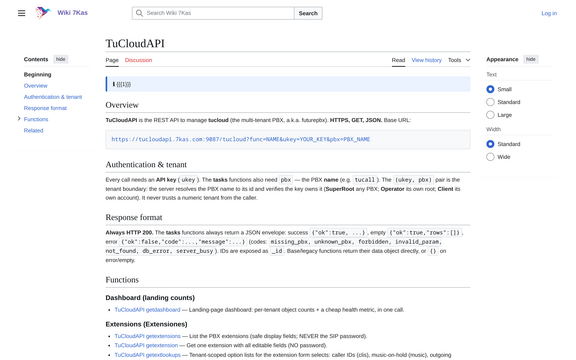 The wiki: every function documented, with parameters and examples
 -
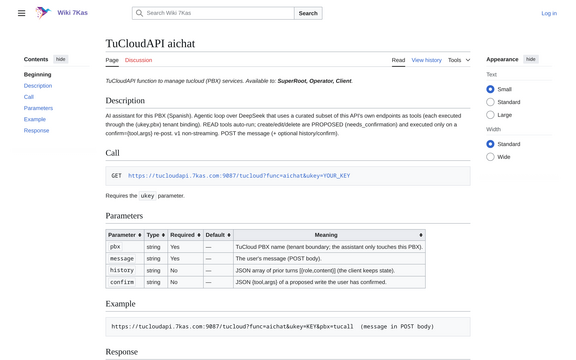 Public API documentation


Availability
FuturePBX is on the home straight. We are finishing the production rollout and it is expected to go on sale in September. We have spent years rewriting this platform layer by layer — FuturePBX is the piece that was missing on top: the one that finally puts all of that work within reach of anyone who can describe what they need.